
How to delete a chat on WhatsApp
Have you chatted with a friend of yours but you don't want to leave tracks of the conversation on your smatphone? In this guide I'm going to explain you how to delete the chat on your Android smartphone.
On Whatsapp you can delete all the chat messages or only a single message.
Select the chat to delete
First of all... push on the Chat button on Whatsapp.
In the first screen of the app there is a list of the last conversations.
Push on the chat you want to remove.
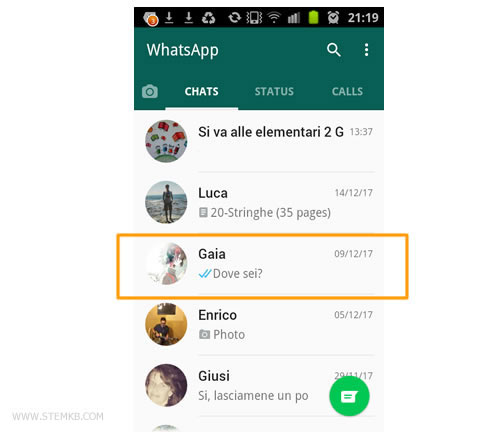
Don't you find the conversation you want to delete? The last screen show you only the last conversations. If it's passed such a long time you have to scroll down and you may not find it easily. In this last case, I suggest you to click on the Contacts button and then to search and push on the name of the person you have chatted with. By this way you can enter more speedly in the chat that you want to delete.
How to delete all the messages in the chat
Push on the menu button on the top right of the screen of your mobile phone to display the commands' list.
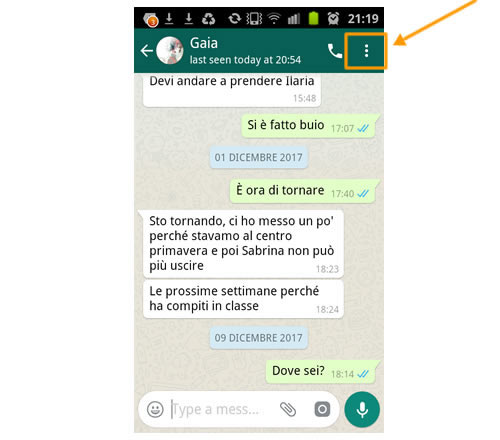
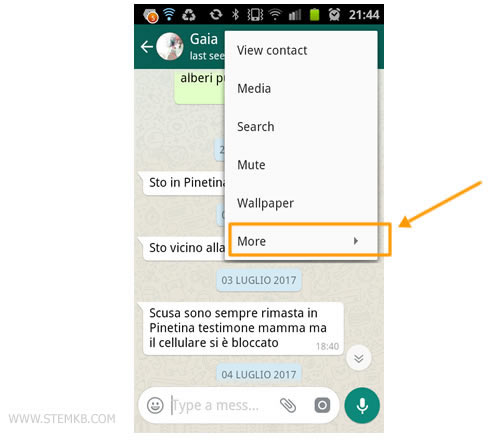
If you haven't istantly found the option Clear chat, push on the button More to complete the visualization of all the features.
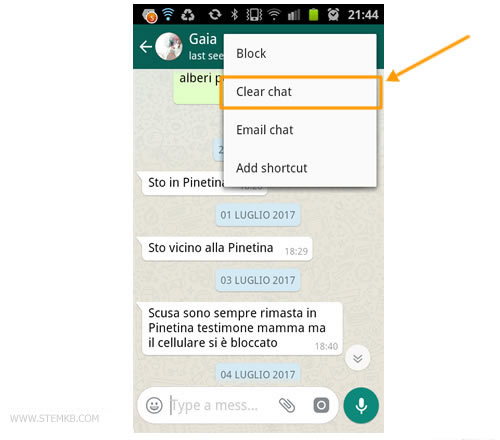
Now push on the button Clear chat to cancel the content of the conversation.
If you want to remove all the messages, even the starred messages, remove the check on keep starred messages.
Push on Clear button to clear messages in this chat.
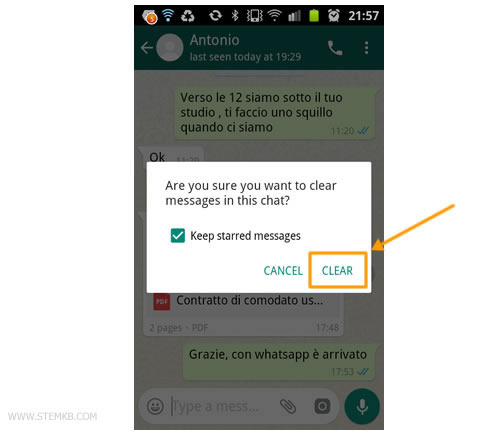
Warning. When you remove all the messages then they are lost forever and there is no way to recover them. If you have changed your mind click on Cancel. If you want to keep the starred messages, push the check on "keep starred messages", to limit the cancellation at the normal messages.
The cancellation removes all the instant text messages. The elimination removes also the photos, the vocal messages and the sharing on the chat.
The conversation has been deleted.
The application automatically come back at the screen with the latest conversations.
Now the chat is empty.
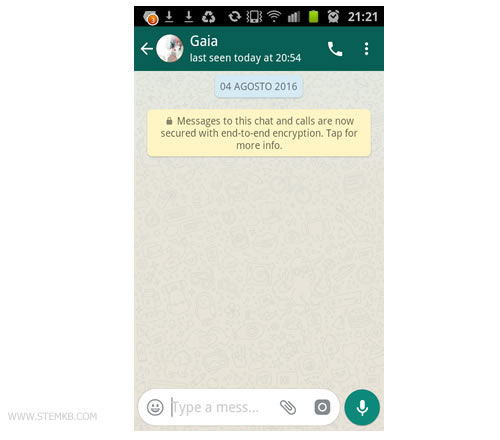
An advice to protect the privacy. On Whatsapp there aren't secrets and protecting perfectly the privacy is very difficult. The person you have talked with could have saved it on the gallery by taking a screenshot, or then have shared it with others or also have printed it.
How to delete only a message
If you want to delete a single message and not the whole conversation you can enter on the chat and push on the message you want to cancel.
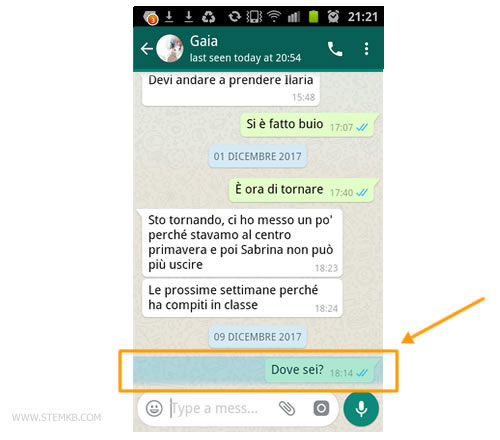
Now, to remove only that message, you have to push on the trash button in the top of the screen on the right.
It is the symbol of the trash can.
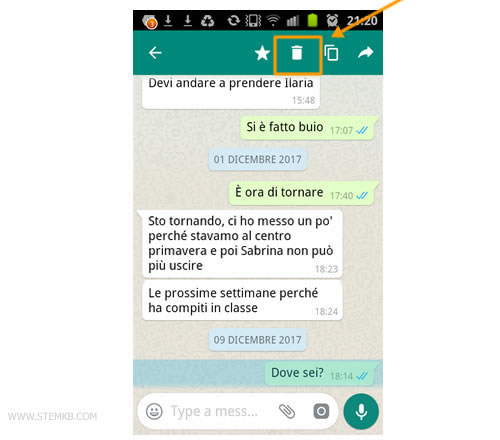
To confirm the elimination, then, click on Delete.
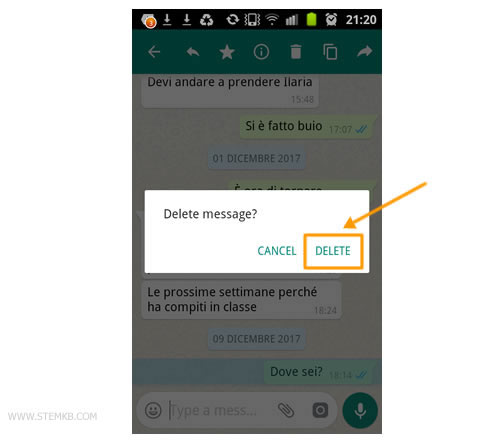
By this way you have deleted only that message, without altering the history or the other messages.
Do you want to delete also other messages?
If you want to cancel also other messages sent on the chat you have to repeat the last operations for the other messages and then to click on the bin for the multiple simultaneous cancellation of the messages you want to delete.
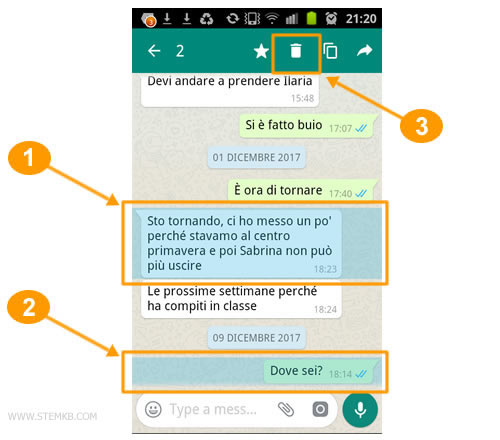
The multiple cancellation makes possible and easy to delete all the selected messages together. It's very useful and convenient.
You've deleted the chat on Whatsapp
By this guide I've told you how to remove the content of a chat on Whatsapp,a programme for instant messagging.
I've written this guide by a smartphone with an Android operating system. The instructions are similar if you use an instant messenger on an Android tablet. In spite of this, they may be different if you use an Apple iPhone or iPad system or also a Nokia Lumia with Windows Mobile.
If this guide has been useful, share it with your friends on Facebook.
Thanks for visiting this website and for reading this Nigiara's tutorial.


